
Make work passwords easier to manage
Passwords are still part of the working day.
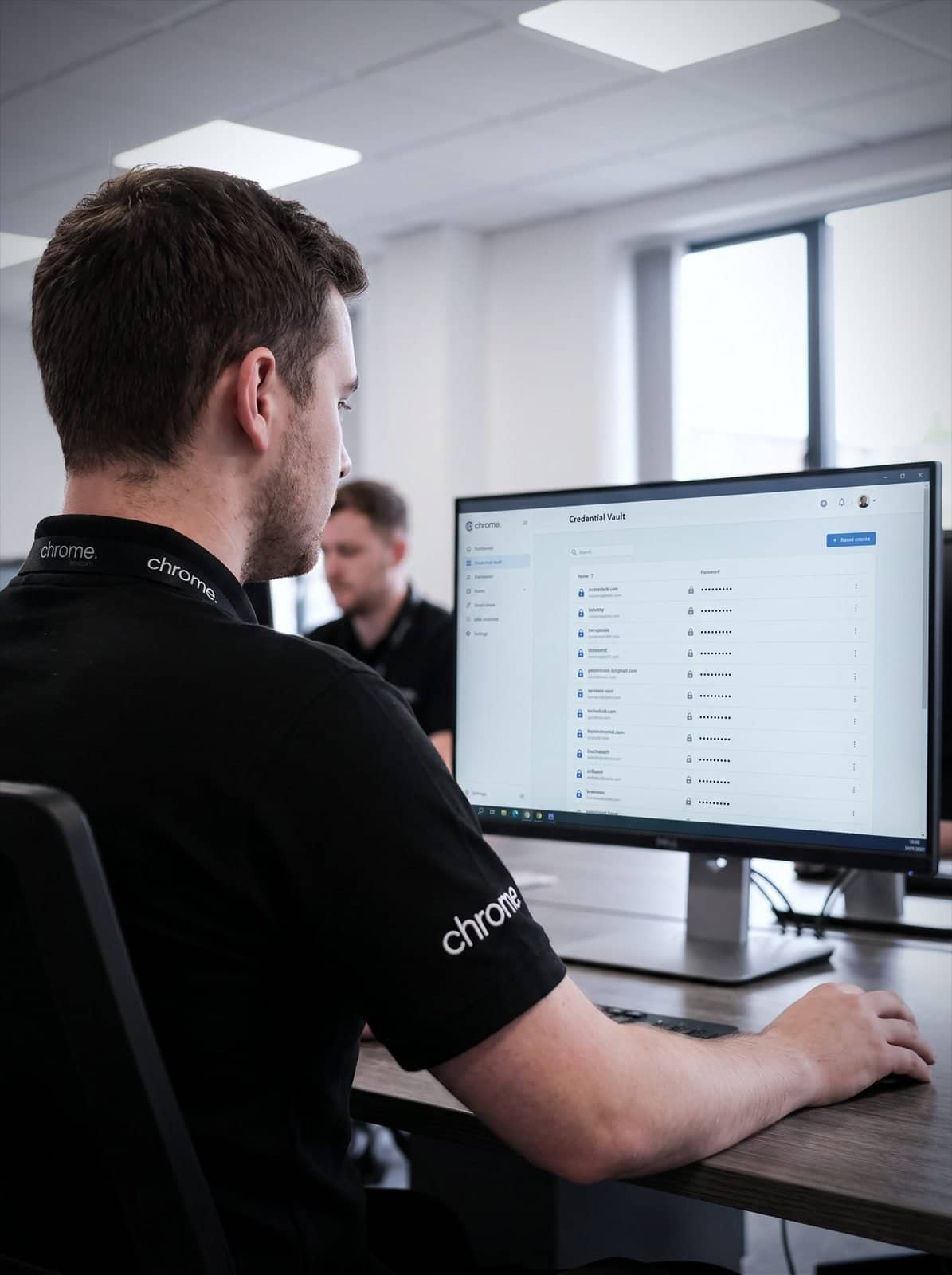

Why use Chrome Password Management?
They protect email, Microsoft 365, finance systems, CRMs, portals, shared tools, admin accounts and supplier platforms.
The problem is that people are expected to remember too many of them.
That is when shortcuts appear.
The same password gets used twice. A login is saved in a browser. A shared password ends up in a spreadsheet. A leaver still has access to something nobody thought to check.
Chrome helps UK businesses put clearer password management in place.
We can support password managers, multi-factor authentication, account access, user guidance and starter and leaver processes.
The aim is simple: help your team use stronger passwords without making sign-in harder than it needs to be.
Reduce password reuse
A password manager can help users create and store unique passwords for different accounts.
Control shared access
Shared logins should not live in spreadsheets, emails or sticky notes.
Support better account security
Password management works best alongside multi-factor authentication, device management and clear access rules.
Make user changes easier
Chrome can help review access when people join, move roles or leave the business.

What is password management?
Password management is the way your business creates, stores, shares, protects and reviews passwords.
It can include password manager software, user guidance, password rules, multi-factor authentication, admin account controls and regular checks on who can access what.
A password manager gives users a safer place to store work passwords. It can also help create stronger, unique passwords, so people do not need to invent or remember them all.
For businesses, password management is not only about individual users. It is also about shared access, admin credentials, supplier accounts, emergency access, leavers and systems that sit outside Microsoft 365.
Good password management should answer practical questions: who has access, where passwords are stored, whether passwords are unique, whether shared logins are controlled, whether multi-factor authentication is switched on where it should be, and what happens when someone leaves.
The goal is not to make logging in painful. It is to reduce loose ends around accounts and access.

Why passwords become hard to manage
Most people do not set out to handle passwords badly. They are busy.
They need to log in to several systems, often from different devices and locations: Microsoft 365, a finance system, a supplier portal, social media, a shared inbox and a few tools that only get used once a month.
Soon, convenience starts to win.
Passwords get reused because they are easier to remember. Browsers save logins without any business-wide control. Shared passwords are sent by message or email. Admin accounts are known by more people than they should be. Nobody is quite sure what to remove when someone leaves.
Chrome can help bring order to this. We’ll look at how passwords are handled now, where the main gaps are and what would make the biggest difference first.
Reused passwords
The same login turns up across several systems because it is easier to remember.
Logins saved in browsers
Convenient for the person, invisible to the business.
Shared by message
Passwords sent by email or chat, then never changed afterwards.
Nobody sure what to remove
When someone leaves, the list of accounts is rarely complete.
Password managers for business
A business password manager gives your team a controlled place to store and use work passwords.
It can help users create stronger passwords, keep passwords unique and reduce the need to remember every login.
Depending on the platform, it may also help with shared vaults, access permissions, password sharing, reporting and alerts.
Chrome can help you choose, set up and explain a password manager that fits your team. We can also help decide who needs access, how shared vaults should be organised and what users need to know before they start.
The setup matters.
A password manager should not become another place where everything is shared with everyone. Teams may need separate access for finance, operations, marketing, management, IT or customer service. Admin credentials may need extra care. Shared access should be limited to the people who need it.
We’ll help make the setup clear, so the tool supports the business instead of becoming another thing nobody quite owns.
Multi-factor authentication still matters
A password manager is useful. It does not remove the need for multi-factor authentication.
Multi-factor authentication adds another check when someone signs in. That may be an authenticator app, a device prompt, a security key or another agreed method.
Chrome can help review where multi-factor authentication is in place and where it needs attention. This may include Microsoft 365, cloud apps, admin accounts, password managers and other business systems.
We can also help your team understand how to use it. For example, users should know not to approve sign-in prompts they did not request, how to report anything suspicious, and what happens if they lose a phone or change device.
The right setup should add protection without leaving people locked out of their working day.
Shared access, admin accounts and leavers
Shared passwords can be one of the messiest parts of business IT.
They often start for a practical reason. A team needs access to a supplier portal. Several people need to manage a social media account. A finance login needs to be available when someone is away.
Over time, shared access can become hard to control. People leave. Roles change. Passwords get copied. Nobody knows who still has access.
Chrome can help review shared passwords and admin accounts. Where possible, individual user accounts are usually easier to manage than one shared password manager set up for a whole team. Where shared access is unavoidable, it should be controlled, reviewed and removed when no longer needed.
Password management should also be part of your starter and leaver process. When someone joins, they need the right access. When they change role, old access may need removing. When they leave, work accounts and shared access need checking properly.
Chrome can help support these processes as part of managed IT or co-managed IT, including Microsoft 365 accounts, password manager access, shared vaults, devices, email, business apps and agreed supplier systems.
A clear process helps reduce gaps. It also makes life easier for the person managing the next starter.
Password management and cyber security
Password management is one part of a wider identity and access management picture, alongside device management, patch management, endpoint protection, user awareness, monitoring and backups.
Passwords are often targeted because they sit between a person and the systems the business relies on. A stolen or reused password can give someone access to email, files, customer information or business tools.
Chrome can help you understand where password management fits into your wider setup, and can also support related areas such as Microsoft 365 security settings, cyber security awareness and Cyber Essentials preparation, where agreed.
The aim is not to frighten people into better habits. It is to make better habits easier to follow.
Password management and your wider technology
Password management rarely sits on its own.
It connects with Microsoft 365, managed IT, co-managed IT, mobile device management, patch management, remote working, cyber security and user support.
Chrome can help bring these areas together through one team.
For example, a password issue may involve a user account, a mobile device, a browser, a Microsoft 365 setting or a third-party app. A leaver process may involve email, devices, shared passwords and supplier portals. A suspicious login may need both account support and cyber security review.
We’ll explain what Chrome manages and where another provider remains responsible, giving your team a clearer place to start when something needs checking.
How Chrome helps
Better password habits start with removing the reasons people cut corners. This is how we work through it with you.
Review the current setup
Identify the main gaps
Recommend the right tools and controls
Set up and explain
Review as people change
Better password habits, with less guesswork
Password management works best when it gives people a safer way to sign in without relying on memory or shortcuts.
Read what customers say about Chrome’s communication, support and the people behind the service in our reviews.
Questions about passwords and access
Common questions about password management: how a password manager works, who controls access and what happens when someone leaves.
What is password management?
Password management is the way your business creates, stores, shares, protects and reviews passwords. It may include a password manager, multi-factor authentication, access rules, user guidance and leaver checks.
Does my business need a password manager?
A password manager can help when staff use several systems and need a safer way to store unique passwords. Chrome can help review whether it is right for your setup and how it should be introduced.
Is a password manager safe?
A business password manager can add useful protection when it is chosen, set up and used properly. It should also be protected with multi-factor authentication and clear access rules.
Does multi-factor authentication replace passwords?
Not always. Many systems still use passwords and multi-factor authentication together, though some now support passwordless authentication or passkeys where the platform allows it. Chrome can help review where stronger sign-in controls may be needed.
Can Chrome help with shared passwords?
Yes. Chrome can help review shared passwords, shared vaults and admin accounts, then suggest a clearer way to manage access.
Are passwords becoming hard to manage?
Your team may be using more systems, more devices and more shared tools than before.
Chrome can help you review password management, multi-factor authentication, shared access and user guidance.
You’ll get clear advice on what needs attention and how to make sign-in safer without making work harder.