
Protect local files on laptops and desktops
Not every business file lives neatly in Microsoft 365.
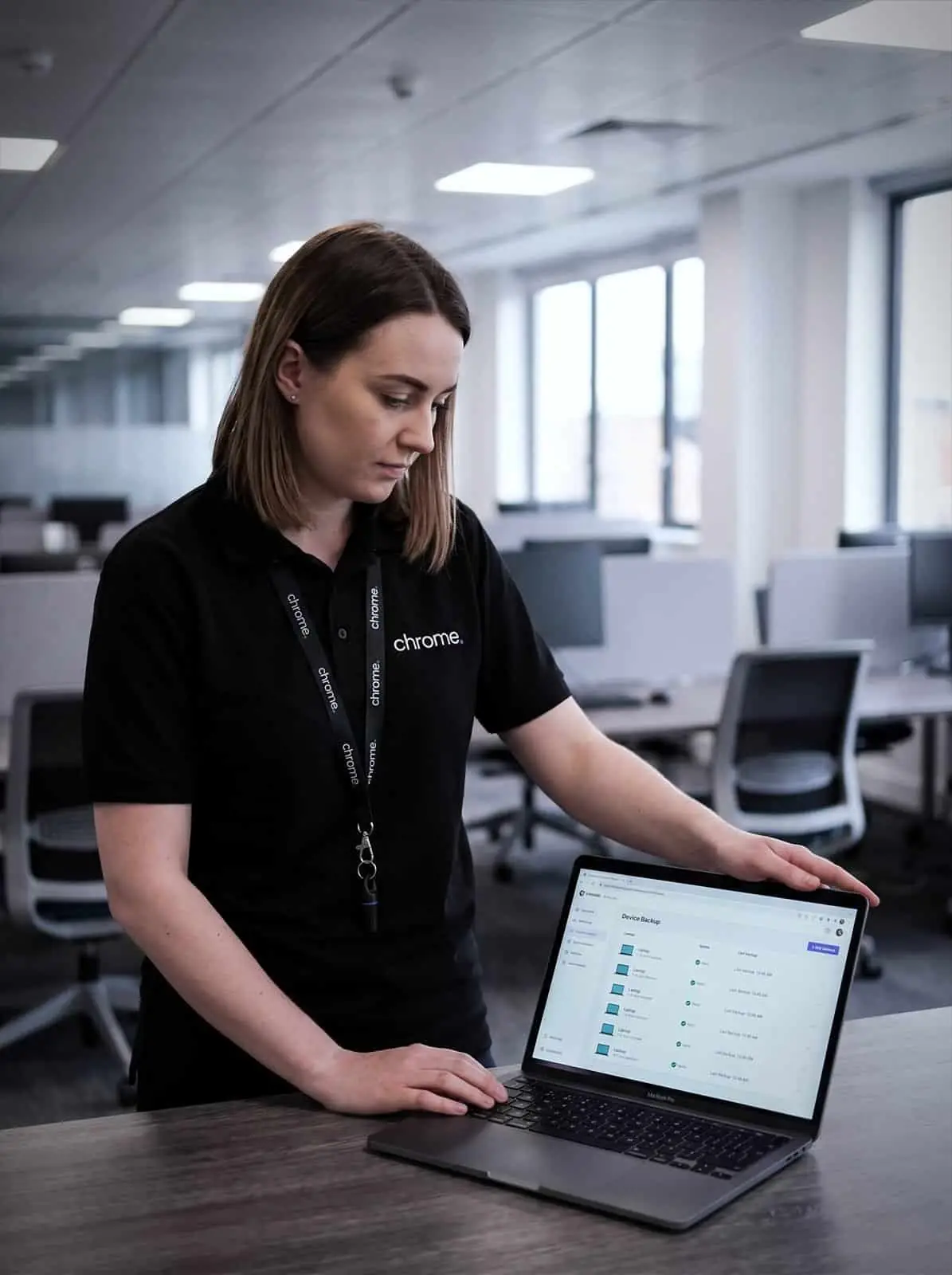

Why use Chrome Endpoint Backup?
Some data may still sit on laptops and desktops. It might be saved to a Desktop folder, a local Documents folder, a project folder, an old device, or a machine used by someone who works away from the office.
That may not cause a problem until the device is lost, damaged, replaced or affected by an issue.
Endpoint backup helps protect agreed data stored on supported laptops and desktops, so your business has clearer recovery options when something goes wrong.
Chrome helps UK businesses review where local data lives, which devices need protecting and how endpoint backup should fit with Microsoft 365, cloud services and wider IT support.
The aim is simple: reduce the chance of important local files disappearing with one device.
Protect local files
Back up agreed data held on supported laptops and desktops, where files are not already protected elsewhere.
Support remote and mobile workers
Help protect users who work from home, across sites or on the move, especially where devices are used as their main workspace.
Make device replacement easier
Endpoint backup can help when a laptop is lost, damaged, retired or replaced, depending on what has been protected.
Connect backup with wider support
Endpoint backup works best when it links with Microsoft 365, 365 Backup, device management, cyber security and managed IT.

What is endpoint backup?
Endpoint backup is a backup service for agreed data held on user devices.
An endpoint usually means a device used by a person, such as a laptop or desktop. In some setups, it may also include other supported devices, depending on the backup platform and service scope.
The purpose is to give your business a recoverable copy of selected data that may otherwise sit only on one device.
That might include local user folders, working documents, project files or other agreed business data.
Endpoint backup is not the same as backing up Microsoft 365.
365 Backup protects agreed cloud data, such as email, SharePoint, OneDrive and Teams content, depending on the service used. Endpoint backup focuses on data held on the device itself.
A good endpoint backup setup should answer practical questions before there is a problem: which devices are included, which folders are protected, how often backup runs, how long data is kept, who can request a restore, what happens when a user leaves, and what is not included.
Chrome can help you work through those details and put a clearer process in place.

Why local data gets missed
Most businesses are trying to build better file habits.
They may use SharePoint, OneDrive, Teams or a cloud application for much of their day-to-day work. Even then, local data can still appear.
A user may save something to their Desktop because they are in a hurry. A project folder may sit on a laptop because it was copied there for site work. A device may hold exports, templates, scans, photos, finance files or working drafts that have not been moved into the right shared location.
Sometimes this is temporary. Sometimes it quietly becomes the way a team works.
The risk is simple. When data only lives on one device, that device becomes a single point of failure.
Chrome can help review where local files are being used and decide whether endpoint backup is needed, or whether better Microsoft 365 file management, sometimes using a Windows feature called Known Folder Move to redirect Desktop and Documents into OneDrive, would solve the problem more clearly.
The right answer may be a mix of both.
Saved to the desktop
Files put somewhere quick and never moved.
Copied for site work
Project folders that travel on a laptop.
Exports and scans
Finance files, templates and photos held locally.
Working copies
The version being edited before it goes back to the shared folder.
What can be backed up?
The exact scope depends on the backup service, device type and agreement in place.
Chrome can discuss endpoint backup for agreed areas such as laptops, desktops, user folders, local working files, project folders and selected business data on supported devices.
This may include common locations such as Desktop, Documents and Pictures folders, where the chosen platform and setup support it.
We’ll make clear what is included, what is not included and what needs a different service.
This matters because not all device data should be treated in the same way.
Some files should be moved into Microsoft 365 or another business system instead of staying local. Some application data may need a specialist backup method, while some files may be personal, duplicated or no longer needed.
Chrome can help you identify what matters and what should be handled another way.
The goal is not to back up every stray file forever. It is to protect the data your business may need to recover.
Recovery when a device fails or goes missing
Endpoint backup is most useful when something happens to a device.
A laptop may be lost while travelling. A desktop may fail. A hard drive may stop working, or a device may need replacing after a security issue. A user may also delete or overwrite a local file by mistake.
This is different from laptop data recovery after a drive has already failed, which is usually a specialist physical recovery service. Endpoint backup is about having a recoverable copy ready before that point is reached.
In those moments, your team should know what can be restored and who to contact.
Chrome can help explain the recovery process before the service goes live.
That may include who can request a restore, what information is needed, which device or user is involved, what date range should be checked and where recovered files should be placed.
Some restores may be straightforward. Others may take more checking, especially where files have changed over time or the original device is no longer available.
A backup service should not be a mystery your team only learns about under pressure.
Endpoint backup and Microsoft 365
Endpoint backup and Microsoft 365 should work together.
For many businesses, the better long-term habit is to keep shared work in SharePoint, personal work files in OneDrive and local files to a minimum. That makes information easier to share, protect and support.
However, some users and roles still create local data as part of their normal work.
Endpoint backup can help protect that data while your business improves its wider file setup.
Chrome can help review where files live now and where they should live in future.
That may involve Microsoft 365, OneDrive, SharePoint, Teams, 365 Backup and endpoint backup tools.
We’ll explain which option protects which data, so your team does not assume everything is covered in the same way.
Starters, leavers and device replacement
Device data often becomes harder to manage when people change roles or leave.
A new starter may need files from a previous user. A leaver may have saved important documents locally. A laptop may need wiping before it is reused, or a replacement device may need key files restored quickly.
Chrome can help link endpoint backup with your starter, leaver and device replacement processes.
That may include checking which data should be retained, which folders are protected and what should happen before a device is retired, wiped or reassigned.
This also helps with managed IT and co-managed IT.
Your team gets a clearer process for device changes, rather than relying on someone remembering to check the old laptop before it disappears into a cupboard.
A good backup plan should support the way devices actually move through the business.
Backup, cyber security and wider support
Endpoint backup is part of a wider recovery plan.
It can help when a device is lost, damaged or affected by an issue, but it should not be treated as the only layer of protection.
Backup works best alongside device management, 365 Backup, cyber security, patch management, password management, endpoint protection and user access reviews.
For example, a lost laptop may need both data recovery and account checks. A suspicious device issue may need cyber security review before files are restored. A repeated local-file problem may show that users need clearer guidance on where documents should live.
Chrome can help bring these areas together through one team.
We’ll explain what endpoint backup covers, what is protected elsewhere and where another service or supplier remains responsible.
That gives your business a clearer place to start when something needs recovering.
Local files you can get back
Endpoint backup works best when it gives a business a clearer way to recover important data from laptops and desktops.
Read what customers say about Chrome’s communication, support and the people behind the service in our reviews.
What people ask about device backup
Common questions we hear from businesses reviewing endpoint backup.
What is endpoint backup?
Endpoint backup protects agreed data stored on supported user devices, such as laptops and desktops. It gives your business clearer recovery options when local files are deleted, lost or affected by a device issue.
Is endpoint backup the same as 365 Backup?
No. 365 Backup protects agreed Microsoft 365 data, such as email, SharePoint, OneDrive and Teams content, depending on the service. Endpoint backup focuses on selected data held on laptops and desktops.
Do we need endpoint backup if we use OneDrive?
It depends how your team works. OneDrive may protect some folders and files, but your business should still check what is actually being saved locally and what is covered. Chrome can help review the current setup.
Can Chrome help restore files from a lost or damaged laptop?
Yes, where the data was included in the agreed backup service and a suitable restore point is available. Chrome can explain the restore process and what information your team needs to provide.
Is this the same as laptop data recovery from a failed drive?
Not usually. Laptop data recovery after a drive has physically failed is typically a specialist service. Endpoint backup is about having a recoverable copy ready in advance, so that situation is less likely to end in lost data.
Are important files still sitting on local devices?
Your business may use Microsoft 365 every day, but some data may still live on laptops and desktops.
Chrome can help you review where local files are stored, decide what needs protecting and put clearer recovery steps in place.
You’ll get practical advice on endpoint backup and how it fits with Microsoft 365, cloud services and wider IT support.