
Phones and IT support for schools
Help parents and carers reach the right team, keep staff contactable, and keep the systems behind the school day running.

Why use Chrome for schools?
As a school phone system built for education, ChromeX gives schools, colleges and multi-academy trusts more control over call routes, voicemail and reporting.
We’ll understand how your setting works, prepare the system and train your staff. We’ll also remain available when you need help or something changes.
Manage busy school-office calls
Use queues and agreed routes when several parents or carers call together.
Reach staff across the site
Choose desk phones, cordless handsets and applications around where people work.
Bring several sites together
Share call handling and manage agreed settings across schools, offices or campuses.
The school phone rarely rings at a quiet moment
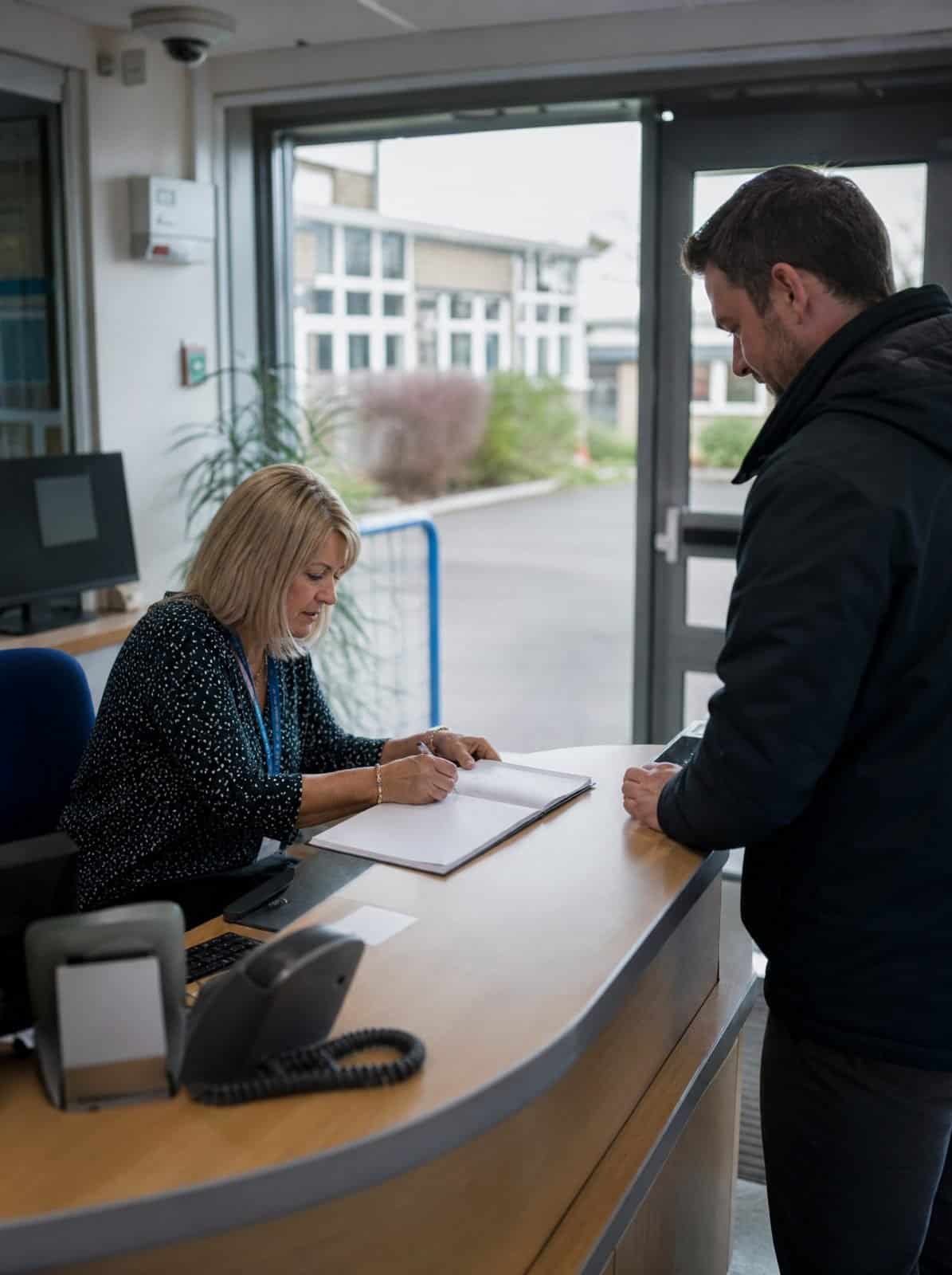
A parent may be reporting an absence. A prospective family may have an admissions question. A supplier or professional service may need to reach a member of staff.
At the same time, the school office may be welcoming visitors, helping pupils and completing other work.
ChromeX can help you agree what happens when several calls arrive together.
Your setup may include call queues, ring groups, short call menus, agreed overflow routes, opening-hours rules, voicemail to email, out-of-hours messages and calls shared between sites.
You’ll get a review of how calls are handled today before anything changes.
The aim is to help callers reach the right team and make calls easier for staff to manage.
Absence reporting
Morning calls that all arrive at once.
Admissions enquiries
Prospective families reaching the right person.
Suppliers and services
Calls for staff who are not at the office.
Visitors at the desk
Office staff helping people in person too.
IT support for schools and trusts
Your school runs on more than its phone line. The management information system, the classroom devices, the network and the filtering all have to work from the first lesson.
Chrome looks after that technology, so your staff can teach instead of chasing a frozen screen.
Systems that stay available
Your MIS, registers and classroom devices are needed the moment the day starts. We’ll watch the network and the devices behind them, and sort faults before a lesson is affected.
Classroom and office technology
Interactive screens, laptops and printers all sit on the same network. We’ll keep them working together, and help you plan replacements before a term starts.
Safeguarding and data protection
Pupil data carries real obligations. We’ll handle backups, staff security training and the access controls your trust and your auditors ask about.
Help callers reach the correct team
Parents and carers may use the same main number for many different reasons.
A short call menu can help direct enquiries to the school office, attendance, admissions, finance, pastoral support, the site team or a particular school or campus.
Keep the choices simple.
Long menus can be hard to follow and may create more work when callers choose the wrong option.
Some calls may need to reach a person rather than a long call menu. We’ll build the call routes around the process agreed by your school.
When the office is closed, callers can hear the opening hours and any agreed next steps.
Messages about pupil welfare, urgent concerns or emergencies must be written and approved by the school.
Keep staff contactable across the site
School staff may work in classrooms, offices, halls, reception areas or elsewhere around the grounds.
Depending on the building and role, they may use desk phones, wireless headsets, cordless handsets, desktop applications, mobile applications, Microsoft Teams or additional ringing or visual alert equipment.
Cordless handsets can help agreed staff answer and transfer calls while moving around the site.
Coverage depends on the layout and construction of the building. We’ll review the premises before recommending equipment.
Supported applications may also allow authorised staff to make calls, check voicemail and view recent activity.
The school number can be shown instead of a personal mobile number.
You’ll get equipment recommended around each role rather than everyone getting the same setup.
See which calls need a response
A missed call may be from a parent, another school, a professional service or someone asking about a place.
ChromeX reports can help authorised staff review information such as unanswered calls, the date and time, the number or site contacted, queue waiting times, call volumes, activity by team or department and outbound call activity.
Reports can also help managers understand when demand rises and where callers wait longest.
This can help the school ask: are absence calls reaching the right team, does the office need more cover at certain times, are voicemail messages being checked, are calls being transferred too often, could another site help during busy periods, and do the opening hours still match the school day?
A report does not return the call by itself.
The school still needs a clear process for checking missed calls, assigning responsibility and recording when someone has responded.
Chrome can help you choose reports that support that process.
Keep parents and carers informed
Clear messages can help callers understand what will happen next.
Recorded greetings and on-hold messages may share school-office opening hours, how to report an absence, admissions information, other ways to contact the school, term dates or planned closures, temporary changes agreed by the school, and information about where to find further help.
Messages should be short and easy to follow.
Parents calling during a busy morning do not need a lengthy tour of every school department.
Chrome can help prepare the wording, arrange the recording and add it to the agreed parts of the phone system.
Where supported, business text messages may also help with agreed updates.
These should work alongside the school’s existing parent communication and emergency arrangements, and should never be used as a substitute for a school’s own safeguarding procedures.
Connect schools, trusts and campuses
A multi-academy trust or multi-site setting should not have to manage every location through a completely separate phone system.
ChromeX can bring users, numbers and call routes together across agreed sites.
Depending on the setup, staff may be able to transfer calls between schools or offices, share responsibility for busy call groups, use a central contact directory, manage opening hours through one portal, view reports across selected sites, keep greetings and menus consistent, and answer through supported applications.
A central team may be able to help when a school office is busy or short-staffed.
Each school can still keep its own main number and local call routes where needed.
We’ll agree how calls should be shared before setting up any overflow route.
Connect calls with school software
Your school management information system or other administration software may already hold useful contact information.
ChromeX can connect with supported business platforms.
Depending on the software, staff may be able to see available caller information, open a matching record, click a telephone number to begin a call, add call information to a record, and access contacts through both systems.
Functions differ between platforms, whichever management information system your school or trust already uses.
You’ll know what is supported once we’ve checked the software your school uses, before anything is recommended.
The school remains responsible for deciding who can access pupil, parent and staff information.
Review calls for a clear reason
Call recording may help when there is a genuine reason to listen again.
A school or college might use suitable recordings to review a complaint, check what was discussed, support staff training, understand a difficult or abusive call, or review whether an agreed process was followed.
Recordings may contain personal or sensitive information.
The school should decide why calls are recorded, who can listen, how long recordings are kept and how callers and staff are informed.
Chrome can explain the recording, access and storage options.
The school remains responsible for its data protection, employment and education requirements, including anything expected by Ofsted or the Department for Education. Legal or compliance advice may also be needed.
Plan for a phone or connection problem
A cloud phone system uses an internet connection and power.
Before the service begins, we’ll discuss what should happen if the main connection becomes unavailable.
Options may include sending calls to another number, selected mobiles or another site. A suitable backup connection may also form part of the setup.
The right approach will depend on the setting, opening hours and calls that need to remain available.
Chrome can support the phone system, connectivity and business mobiles through one team.
One team for more of your school technology
The phone system is only one part of the school’s technology.
Chrome can also support internet connectivity, Wi-Fi and network equipment, managed IT, Microsoft 365, cyber security, business mobiles, and CCTV and access control.
This gives your school or trust fewer suppliers to manage and one team to call when responsibilities overlap.
We’ll make it clear what Chrome supports and when another provider needs to be involved.
CCTV and other security services require their own planning and policies. They should not be presented as a feature of the phone system.
Related industries: care homes and healthcare providers. You can also browse every sector we support.
How Chrome helps
What working with Chrome looks like, from the first conversation to ongoing support.
We understand your setting
We’ll review your buildings, sites, users, numbers and current call routes.
We’ll ask where calls are being missed, where coverage causes problems and what already works well.
We recommend and prepare the setup
You’ll receive clear information about the call routes, equipment, applications, licences and costs.
We’ll explain why each option has been suggested.
You will not be pushed towards tools your school does not need.
We train and support your staff
We’ll show staff how to use the parts of the phone system needed for their roles.
Chrome will remain available for technical support, questions and future changes.
We’ll agree the right approach for your setting before anything changes.
Why education settings choose Chrome
What working with Chrome looks like in practice.
Clear advice
We explain the options in plain English before you commit.
A setup based on your setting
We look at your sites, staff, callers and working day before recommending anything.
Training for the people using it
We show staff how to use the phones and tools needed for their roles.
Support after installation
Speak to people who understand your setup when you need help or a change made.
We’ll talk through the options and agree what suits you before anything changes.
Education phone systems FAQs
Common questions we hear from schools and education settings about phone systems.
Which education settings can Chrome support?
Chrome can discuss a phone system for schools, academies, multi-academy trusts, colleges, nurseries and other education organisations. The right setup will depend on the buildings, users, existing technology and agreed policies.
Can we keep our existing school number?
In most cases, existing business numbers can be moved. We’ll check them before the project begins and explain any restrictions or timescales.
Can cordless phones work throughout the school?
That depends on the size, layout and construction of the buildings. We’ll review the premises and explain where additional equipment or another option may be needed.
Can several schools use the same phone system?
Yes. ChromeX can connect staff and call routes across several locations. We’ll agree how numbers, call groups and overflow calls should work between them.
Can ChromeX connect with our management information system?
ChromeX can connect with supported business platforms. Functions differ between systems. We’ll check your software and explain what is available.
Can staff answer away from the school office?
Staff may be able to use cordless handsets, desktop applications, mobile applications or Microsoft Teams. The right choice will depend on their role and working location.
Is your current phone system helping your school office?
Parents may be waiting too long. Calls may be reaching the wrong team. Staff may struggle to answer when they are away from their usual desk.
Several sites may also be managing separate systems that are difficult to oversee.
Chrome can review your call routes, handsets, reporting and wider technology setup.
You’ll receive clear recommendations based on how your setting works.