
Manage work mobiles, tablets and laptops more clearly
Mobiles, tablets and laptops are part of the working day.
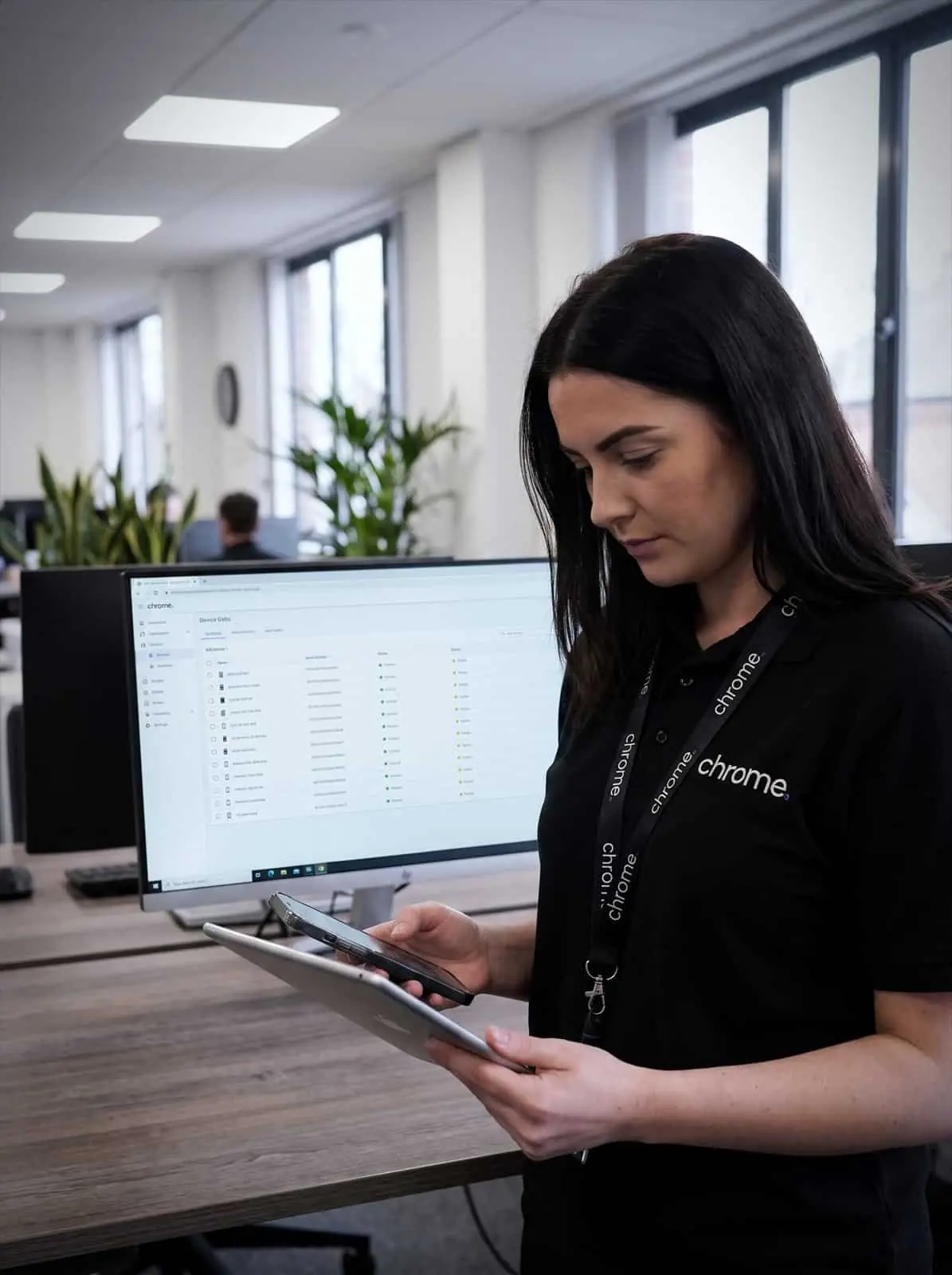

Why use Chrome Mobile Device Management?
They help people answer emails, join meetings, access files, take calls, use apps and work from different locations.
That is useful. It can also become hard to manage when devices are spread across teams, sites and homes.
A phone is lost. A tablet still has old apps on it. A laptop is missing updates. A leaver keeps access longer than they should. Nobody is quite sure which devices are still in use.
Chrome helps UK businesses manage work devices through Mobile Device Management, often called MDM.
We can help review your devices, users, apps, access, settings and support routes.
The aim is simple: make devices easier to manage, easier to support and less likely to become a loose end.
See which devices are in use
MDM can help your business keep a clearer view of company devices, users and settings.
Manage apps and settings
Chrome can help apply agreed settings, install approved apps and reduce manual setup work.
Support lost or stolen devices
Where the device and platform support it, MDM may allow a device to be locked, retired or wiped remotely.
Link devices with wider IT support
MDM works best when it connects with Microsoft 365, password management, patching, cyber security and user support.
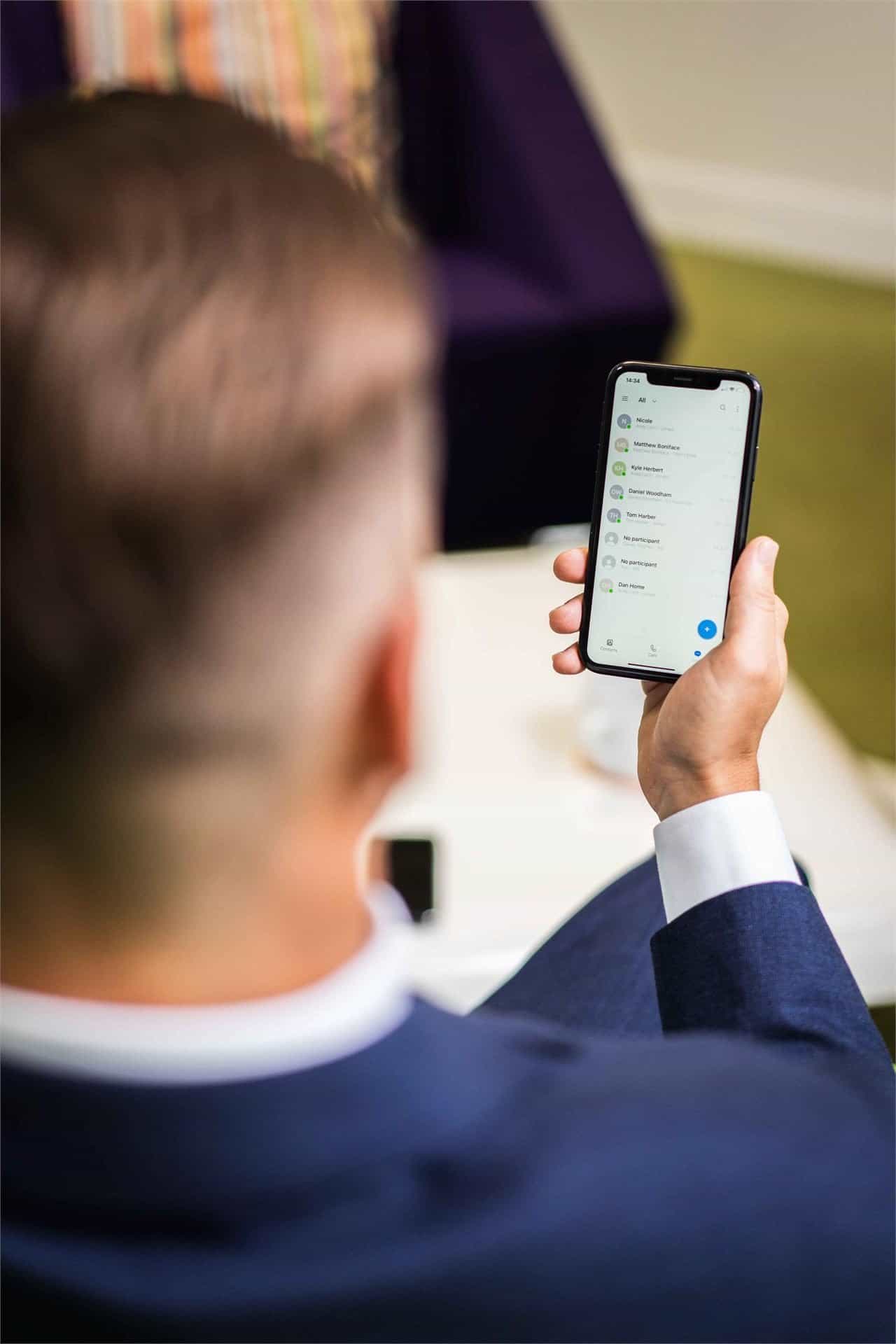
What is Mobile Device Management?
Mobile Device Management is a way to manage devices from a central platform.
It can help your business set up, update, support and review work mobiles, tablets, laptops and some desktops.
Depending on the platform, licence and device type, MDM may help with device enrolment, security settings, app deployment, password or PIN rules, update checks, reporting and lost device handling. It can also support starter and leaver processes.
That matters because device management can get messy quickly.
A few people need company phones. Then a team needs tablets. Then more staff work remotely. Then someone uses a personal phone to check email. Then laptops, apps, passwords, updates and leaver access all need checking.
Before long, device management is being handled through memory, spreadsheets and “who has that phone again?” conversations.
Chrome can help bring more order to the setup. We’ll look at which devices are in use, who has them, what they can access and how they are managed now.
From there, we can recommend a clearer way to handle devices as people join, move roles or leave.
Company devices and personal devices
Not all devices should be treated the same.
Company-owned devices usually give the business more control. Personal devices need more care, because the device belongs to the user.
Chrome can help you decide how work data should be accessed on each type of device.
For company-owned mobiles, tablets and laptops, MDM may help apply settings, manage apps, check compliance and remove business data when needed.
For personal devices, the right answer may be more limited. In some cases, Mobile Application Management may be more suitable than full device management. That can help manage work apps and work data without managing the whole personal device, an approach some businesses know as BYOD, or bring your own device.
We’ll explain the options in plain English and help you put a simple BYOD policy in place if you do not already have one.
Your team should know what is being managed, what is not being managed and what happens if a device is lost, replaced or no longer used for work.
Apps, access and device settings
MDM can help make device setup more consistent.
That may include approved apps, email profiles, Wi-Fi settings, password or PIN rules, encryption settings, update checks and access controls.
This can save time when new devices are issued. It can also reduce the chance of important settings being missed.
For example, a new starter may need Microsoft 365, Teams, Outlook, a phone app, security tools and agreed business apps ready from day one. A leaver may need access removed from devices, apps and shared tools. A lost phone may need action before business data is left exposed.
Chrome can help connect device management with wider IT support, password management and cyber security.
The goal is not to make devices difficult to use. It is to make the setup clearer, safer and easier to support.
Lost devices, leavers and device changes
Devices move around. People leave. Phones get replaced. Tablets are passed between teams. Laptops are taken home, brought back, upgraded or retired.
MDM can help your business keep better control of those changes.
Depending on the setup, it may allow approved users to lock, retire or remote wipe a device. It may also help remove work data from a device when a user leaves or when a device is no longer trusted.
Chrome can help build this into your starter, leaver and device replacement process, including checking who has each device, what data it can access, which apps are installed and what should happen before the device is reused.
This is where good process matters. A device list that is only updated once a year is not much help when a phone has just disappeared on a train.
Microsoft Intune and device management
Many businesses already use Microsoft 365. That can make Microsoft Intune a sensible option for device and app management.
Intune MDM can help manage devices, apps, compliance policies and access to business resources, where the right licences and settings are in place.
Chrome can help review whether Intune is right for your setup, including Microsoft 365 licences, user accounts, device enrolment, app policies, compliance settings and access rules, and can explain Microsoft Intune pricing before you commit. This kind of endpoint management brings phones, tablets and laptops under one set of rules rather than treating each device type separately.
A tool is only useful when it is set up around how people actually work. We’ll help you decide which users and devices should be included, which settings make sense and how the change should be explained to your team.
MDM and your wider technology
Mobile Device Management rarely sits on its own.
It connects with business mobiles, Microsoft 365, remote working, password management, patch management, cyber security and support.
Chrome can help bring those areas together through one team.
For example, a mobile issue may involve the handset, the SIM, the Microsoft 365 account, the phone app, the password manager or the user’s access settings. A leaver process may involve devices, email, apps, shared passwords and call routing. A lost device may need both mobile support and account security checks.
We’ll explain which parts of your managed IT Chrome looks after and where another provider remains responsible, giving your team a clearer place to start when something needs checking.
Clearer control of the devices your team uses
Mobile Device Management works best when it gives a business a clearer view of its devices, users and access.
Read what customers say about Chrome’s communication, support and the people behind the service in our reviews.
Common questions about work devices
Common questions about mobile device management: what it controls, which devices it covers and what happens when a phone is lost.
What is Mobile Device Management?
Mobile Device Management is a way to manage work devices from a central platform. It can help with device setup, settings, apps, access, reporting and lost device handling.
What devices can MDM manage?
This depends on the platform and setup. MDM may support company mobiles, tablets, laptops and some desktops, depending on the device type, operating system and licence.
Can Chrome help with Microsoft Intune?
Yes. Chrome can help review, configure and support Microsoft Intune where it fits your Microsoft 365 setup and service agreement.
Can MDM wipe a lost device?
In some cases, yes. This depends on the device, platform, enrolment method and permissions in place. Chrome can explain what is possible before the service starts.
Can MDM be used on personal devices?
It can be used in some bring-your-own-device setups, but personal devices need careful handling. In some cases, Mobile Application Management may be more suitable than full device management.
Are your work devices becoming hard to manage?
Your team may be using mobiles, tablets and laptops across the office, home, sites and the road.
Chrome can help you review those devices, manage access and put clearer controls in place.
You’ll get practical advice on what needs attention and how device management should fit into your wider IT support.