
Give your team a work desktop they can reach from more places
Some teams need more than email, files and a few cloud apps.
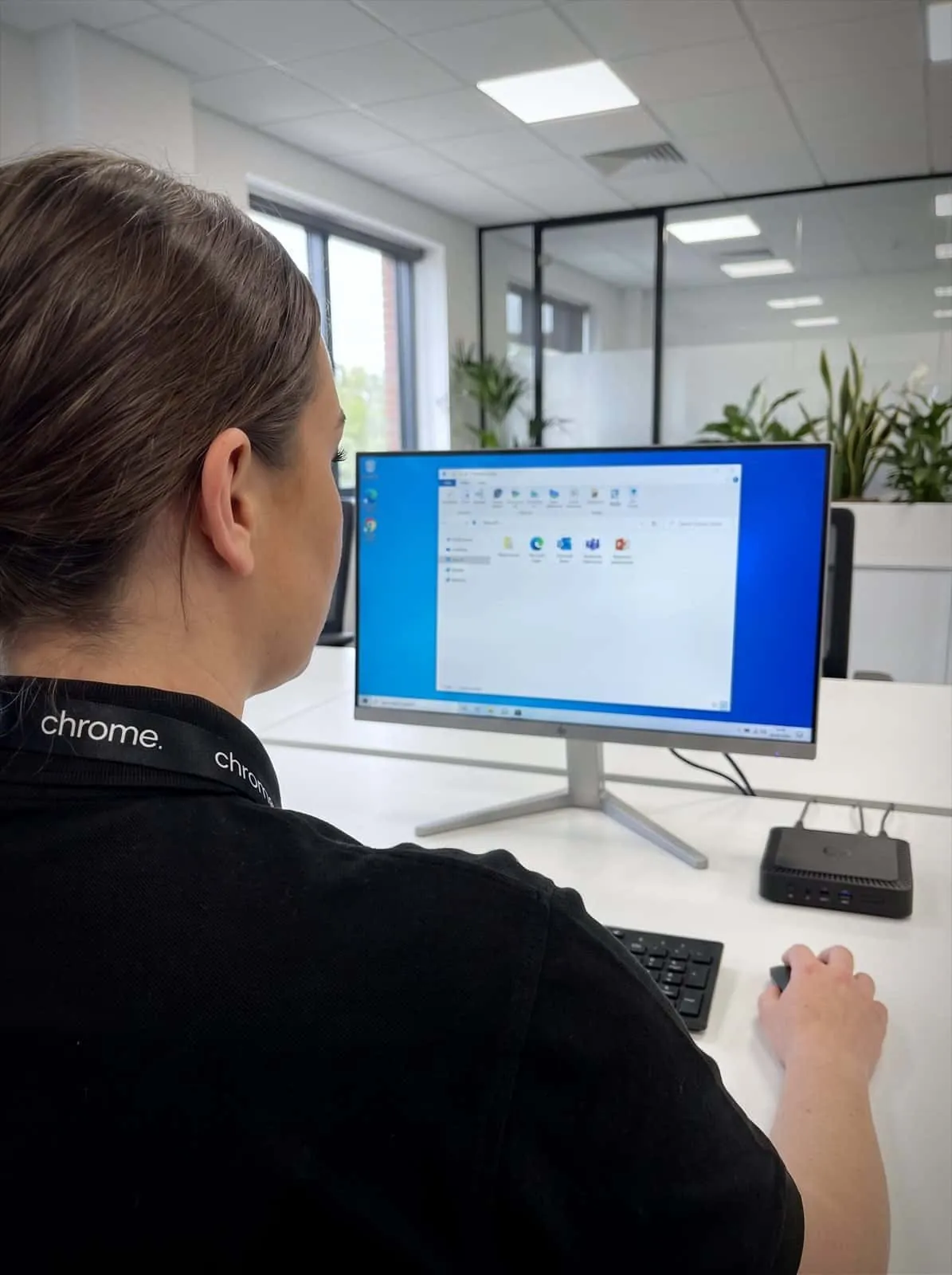

Why use Chrome Virtual Desktop?
They may need access to the same desktop, specialist software, business applications or a managed working environment from different locations.
That can be difficult when people use different devices, work across sites or rely on older systems that were built around one office.
Virtual desktop services can help by giving users access to a managed desktop or selected applications through a cloud-based setup, sometimes delivered as a Cloud PC or through hosted desktop services.
Chrome helps UK businesses decide whether virtual desktop or Cloud PC services are the right fit, then plan the setup around users, applications, connectivity, security and support.
The aim is simple: help your team access the tools they need without making the setup harder to manage.
Support remote and hybrid teams
Give users access to agreed desktops, apps and files from different locations, where the setup supports it.
Keep business apps easier to reach
Virtual desktop can help teams access specific applications without installing everything on every device.
Manage access more clearly
Chrome can help review users, permissions, devices, security settings and support routes before rollout.
Reduce pressure on local devices
Some users may be able to work from suitable devices without needing every application installed locally.

What is a virtual desktop?
A virtual desktop gives a user access to a desktop environment that runs away from their local device.
The user signs in from a laptop, desktop, thin client or another supported device, then works in a managed desktop or selected application.
Depending on the platform, this may be delivered through services such as Azure Virtual Desktop, Windows 365 Cloud PC or another hosted desktop setup.
A virtual desktop may be useful when your business needs a clearer way to provide access to apps, files or desktops.
It can help answer practical questions before anything is changed: which users need access, which applications need to run, whether current devices can support the setup, what internet connection is needed, how files and profiles will be managed, and who supports the user if something does not work.
Chrome can help you work through those questions in plain English.
Sign in from anywhere
A laptop, desktop, thin client or another supported device.
A managed desktop
The environment runs away from the local machine.
Azure and Windows 365
Delivered through Azure Virtual Desktop or Windows 365 Cloud PC.
Applications only
Give people a single application rather than a full desktop.

Virtual desktop or Cloud PC?
The terms are often used together, but they do not always mean exactly the same thing.
Virtual desktop is the broader term. It can describe a hosted desktop or application environment that users access remotely, and it is sometimes called VDI, short for virtual desktop infrastructure, or desktop as a service.
Cloud PC is commonly linked to Microsoft Windows 365. It gives a user a cloud-based Windows desktop that can be reached from supported devices.
Azure Virtual Desktop is another Microsoft option. It can provide virtual desktops or specific remote applications through Azure, with more flexibility around how the environment is built and managed.
The right choice depends on your users, applications, licences, security needs, budget and support model.
Some businesses may benefit from a simple Cloud PC setup, while others may need Azure Virtual Desktop, hosted applications or a different approach.
Chrome can help compare the options in plain English, so you do not have to choose based on product names alone.
When virtual desktop makes sense
Virtual desktop is not the right answer for every business.
It can be useful when users need access to the same working environment from several locations, or when applications are difficult to manage on individual devices.
It may also help when temporary staff, contractors, remote teams or multi-site users need controlled access to business systems.
A virtual desktop setup may be worth considering if users need specialist software from different locations, older applications still need to be supported, or remote workers need a more consistent desktop setup.
It can also help when devices vary across the team, users only need access to selected apps, or a server replacement or cloud migration is being planned.
The key is to start with the working need, not the product.
Chrome will help you decide whether virtual desktop is useful, or whether Microsoft 365, cloud migration, remote working support or device management would be a better fit.
Apps, files and user access
Virtual desktop projects often start with applications.
Your team may need access to accounting software, design tools, customer systems, line-of-business applications or older software that is hard to install and support on every device.
Chrome can help review which apps need to be included and how they are used.
Some applications may work well in a virtual desktop environment. Others may need supplier approval, testing, licence checks or a different plan.
Files also need careful thought.
Users may need access to SharePoint, OneDrive, file shares, hosted storage or application data. Permissions should be checked before access is handed over, especially where sensitive information is involved.
A virtual desktop setup should make access clearer, not copy old file problems into a new place.
Chrome can help review users, groups, folders, applications and supplier responsibilities before the service goes live.
Devices, connectivity and user experience
A virtual desktop still depends on the device and connection used to reach it.
A user may be working from a company laptop, personal device, shared workstation or thin client. They may be in the office, at home, on site or travelling.
The experience can be affected by the internet connection, Wi-Fi, device age, screen setup, printers, headsets, cameras and the applications being used.
Chrome can help review these practical details before rollout.
That may include checking device suitability, connectivity, user groups, Teams calling needs, printing, security settings and support expectations.
This matters because a virtual desktop is only useful if people can work with it properly.
A setup that looks right on paper can still cause daily frustration if users cannot print, join calls or open the apps they need.
Chrome can help test the experience, explain what users should expect and support the team after launch.
Security, backup and management
Virtual desktop can support a more managed working setup, but it still needs sensible security and ownership.
That may include multi-factor authentication, user access reviews, device controls, session settings, admin access, patching, monitoring and backup planning.
The exact setup depends on the platform and service chosen.
Chrome can help review how virtual desktop fits with Microsoft 365, cyber security, endpoint backup, 365 Backup, password management and managed IT support.
For example, if users access Microsoft 365 from a virtual desktop, account security and permissions still matter.
If a hosted application stores business data, backup and recovery should be understood before users rely on it. If contractors use the service, access should be removed when their work ends.
Virtual desktop can make some areas easier to manage, but it does not remove the need for clear support and regular review.
Virtual desktop and your wider cloud setup
Virtual desktop rarely sits on its own.
It may connect with Microsoft 365, cloud migration, cloud strategy, endpoint backup, 365 Backup, connectivity, devices and cyber security.
For example, a virtual desktop project may depend on the application being hosted, the internet connection being suitable and the user having the right licence.
It may also affect how files are stored, how printing works, how users join Teams meetings and how support requests are handled.
Chrome can help bring these areas together through one team.
We’ll explain what Chrome manages, what another provider manages and what needs testing before the service is rolled out.
That gives your business a clearer place to start when something needs checking.
How Chrome rolls out virtual desktop
Chrome helps UK businesses decide whether virtual desktop or Cloud PC services are the right fit, then plan the setup around users, applications, connectivity, security and support.
Understand the working need
Review the current setup
Recommend the right option
Plan and set up
Support after launch
Desktops that follow the way people work
Customer reviews are one of the clearest measures of the service we provide.
Read what customers say about Chrome’s communication, support and the people behind the service in our reviews.
Read what customers say about Chrome’s communication, support and the people behind the service in our reviews.
Questions about working from more places
Virtual desktop works best when it helps people access the apps and files they need without leaving IT support guessing.
What is a virtual desktop?
A virtual desktop gives a user access to a desktop environment that runs away from their local device. It can help users access agreed apps, files and systems from supported devices and locations.
Is a Cloud PC the same thing?
A Cloud PC usually refers to Microsoft Windows 365, which provides a cloud-based Windows desktop for a user. Virtual desktop is a broader term that can include Windows 365, Azure Virtual Desktop or another hosted desktop setup.
Can virtual desktop help with older applications?
It may help in some cases. Older or specialist applications need checking before a recommendation is made, especially where supplier support, licensing or performance is involved.
Do users still need a good internet connection?
Yes. A virtual desktop depends on the connection and device used to access it. Chrome can help review connectivity, Wi-Fi, devices and user requirements before rollout.
Does virtual desktop replace Microsoft 365?
No. Virtual desktop and Microsoft 365 often work together. Your users may still need Microsoft 365 for email, Teams, SharePoint, OneDrive and everyday documents.
Is hosted desktop the same as virtual desktop?
Largely, yes. Hosted desktop, cloud desktop and virtual desktop are often used to mean the same thing, alongside desktop as a service, all describing a managed desktop environment that runs away from the user’s own device.
Could virtual desktop help your team work from more places?
Your business may need a clearer way to provide access to desktops, applications or older systems.
Chrome can help you review the users, apps, devices, connectivity and support needs before you choose a setup.
You’ll get practical advice on whether virtual desktop, Cloud PC or another cloud service is the right fit.